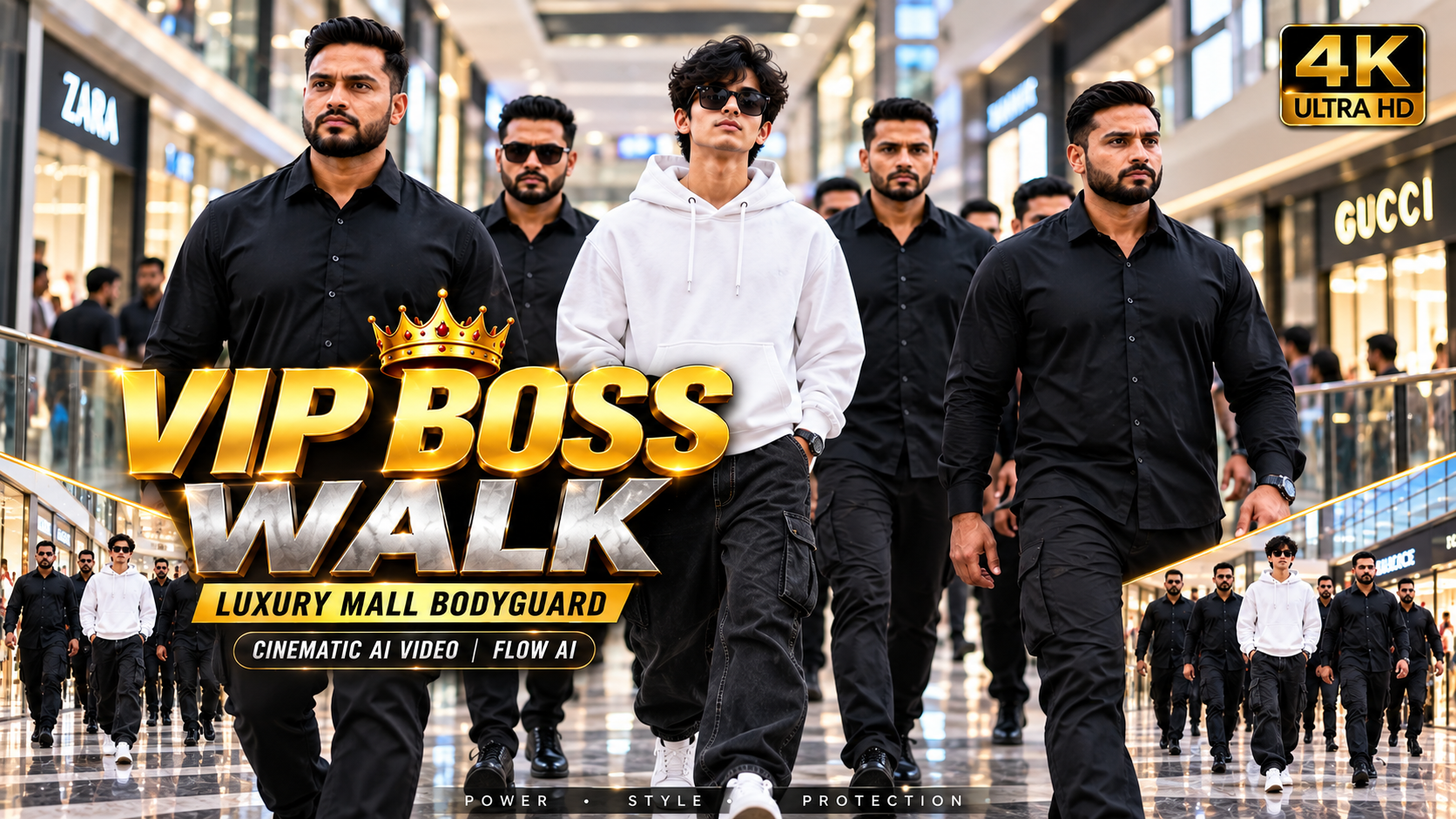
How to Make VIP Boss Walk AI Video
👋 About
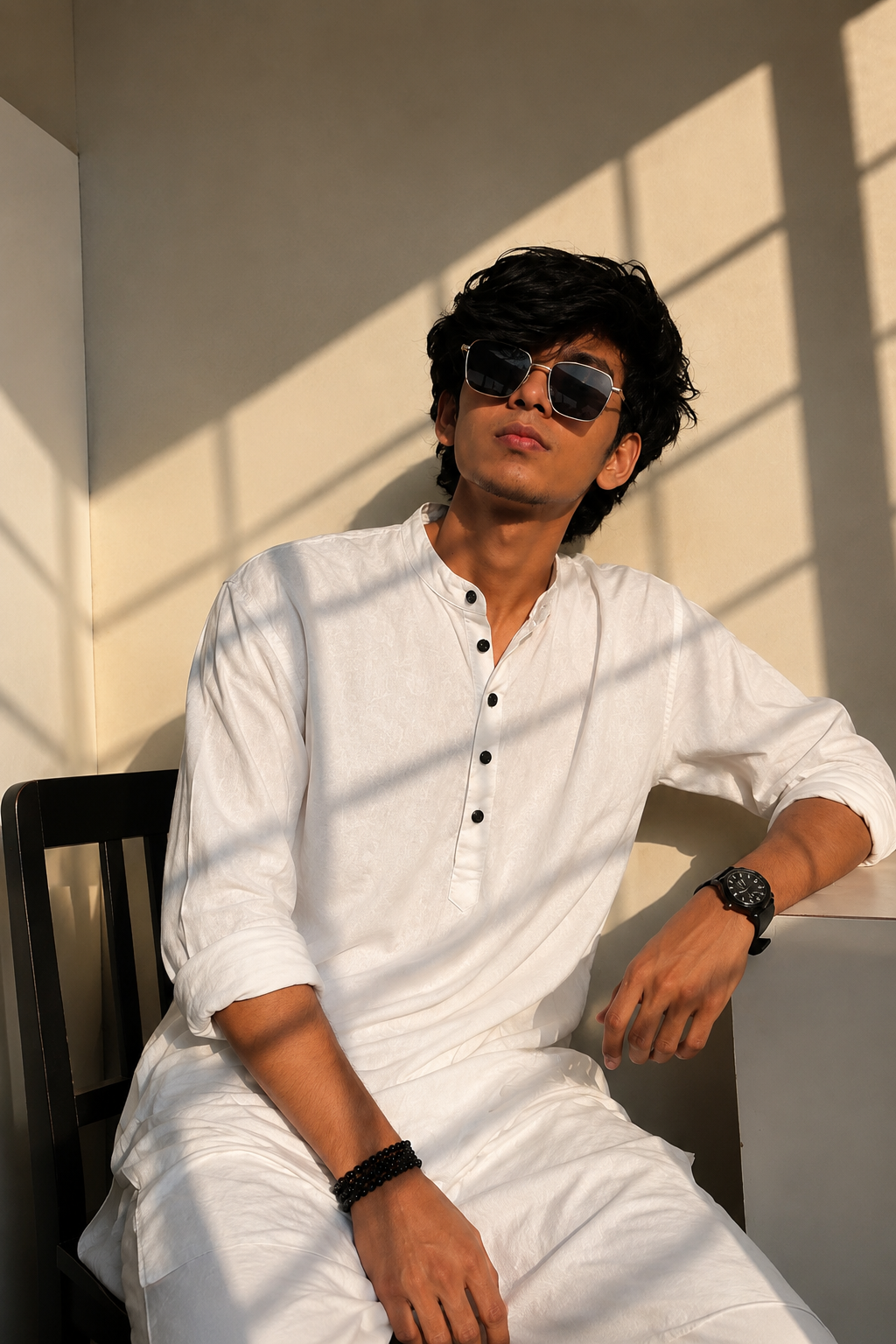
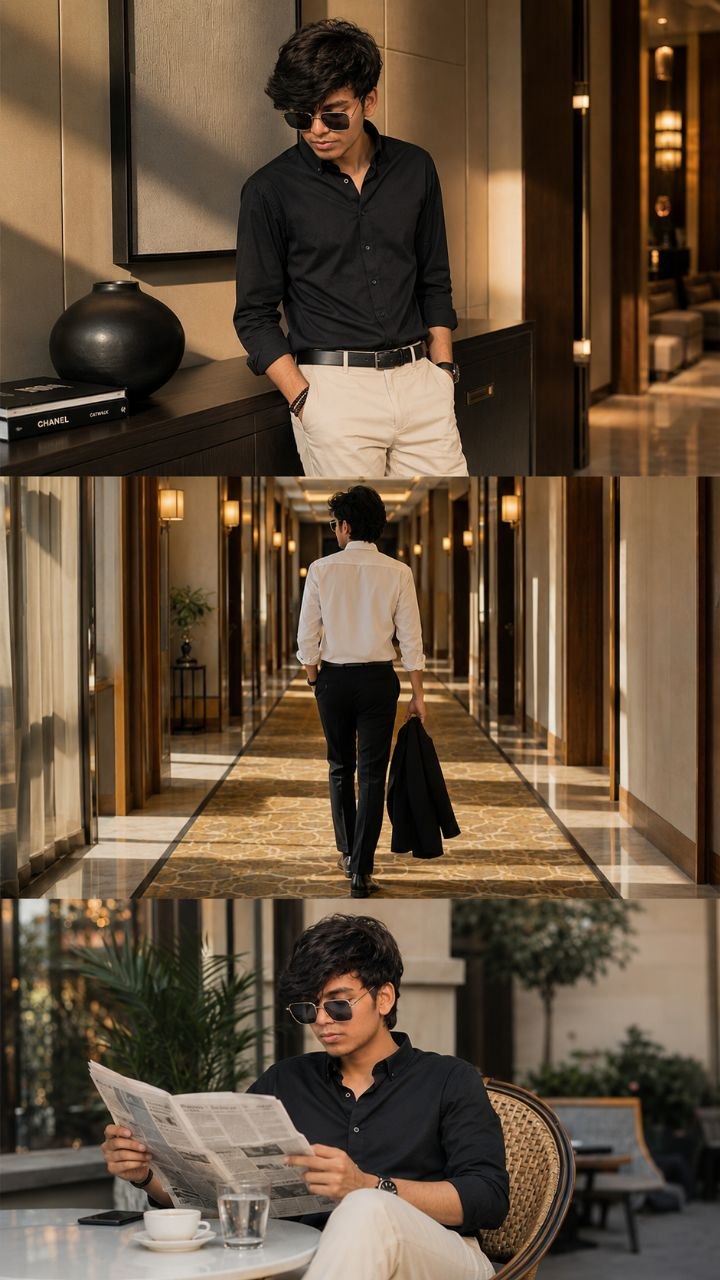
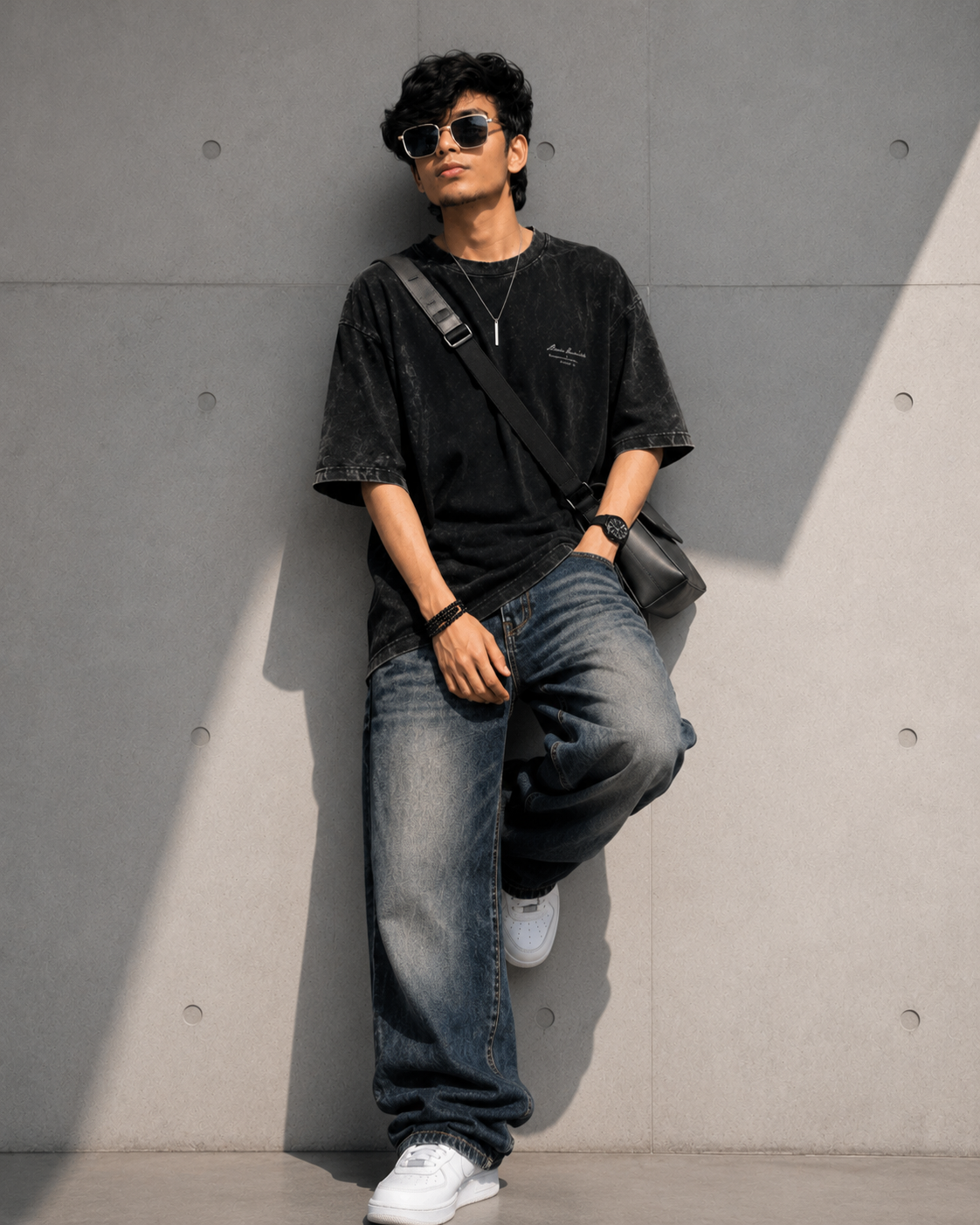
Create a trending VIP Boss Walk AI video using your own photo with Google Flow AI. In this tutorial, you will learn how to transform your image into a cinematic luxury mall boss walk video with a stylish white hoodie, baggy black jeans, sunglasses, and professional bodyguards.
You can easily create a cinematic VIP Boss Walk AI video using your own photo and Google Flow AI. Simply copy the image prompt, generate your VIP boss image, and use the video prompts to create a realistic luxury mall walking scene with bodyguards. This tutorial is perfect for creating trending AI videos for YouTube Shorts and Instagram Reels.
✨ Best Prompt for VIP Boss Walk AI Video
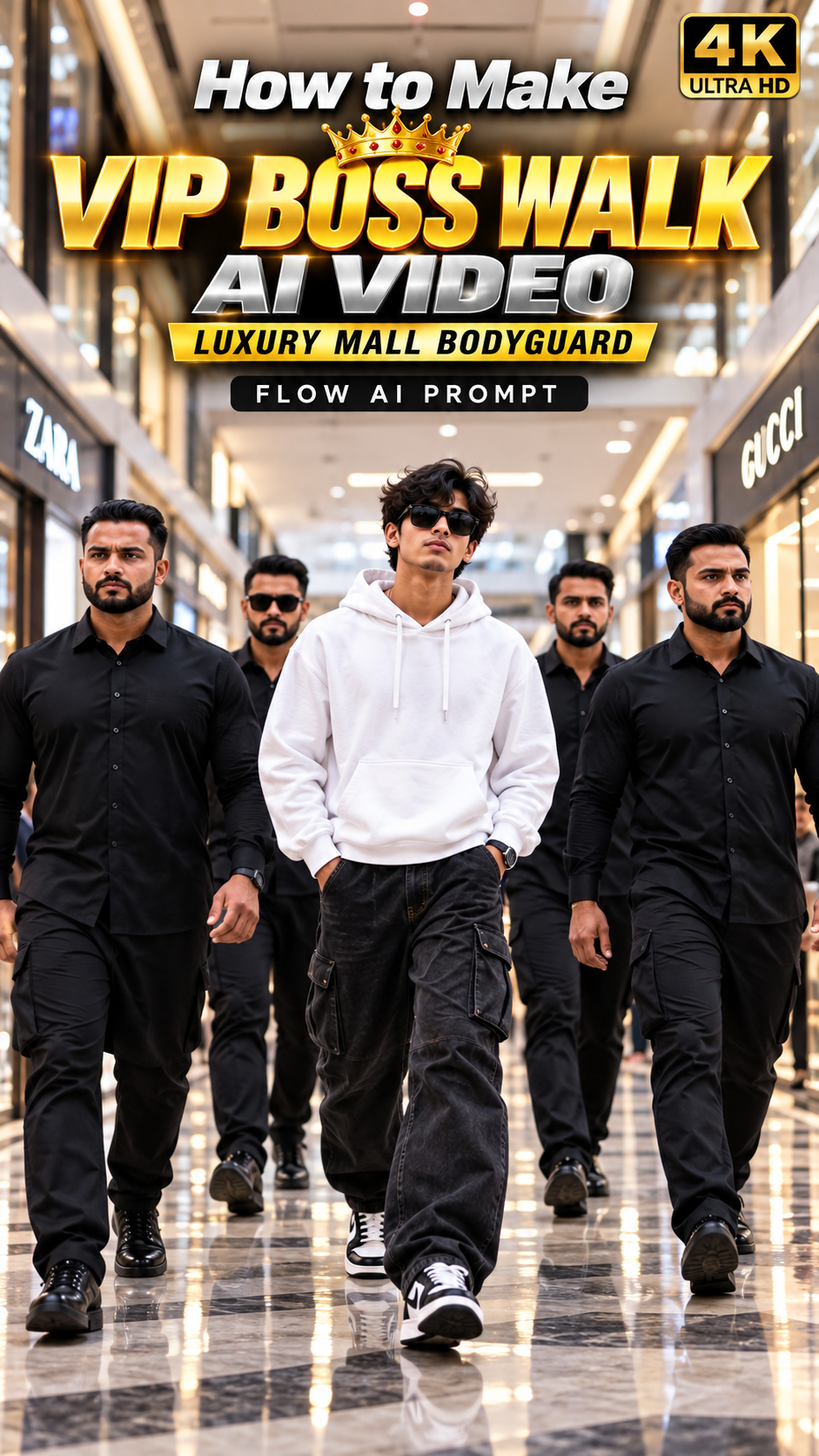
🛠️ How to Create Trending AI Images Using ChatGPT 🔥
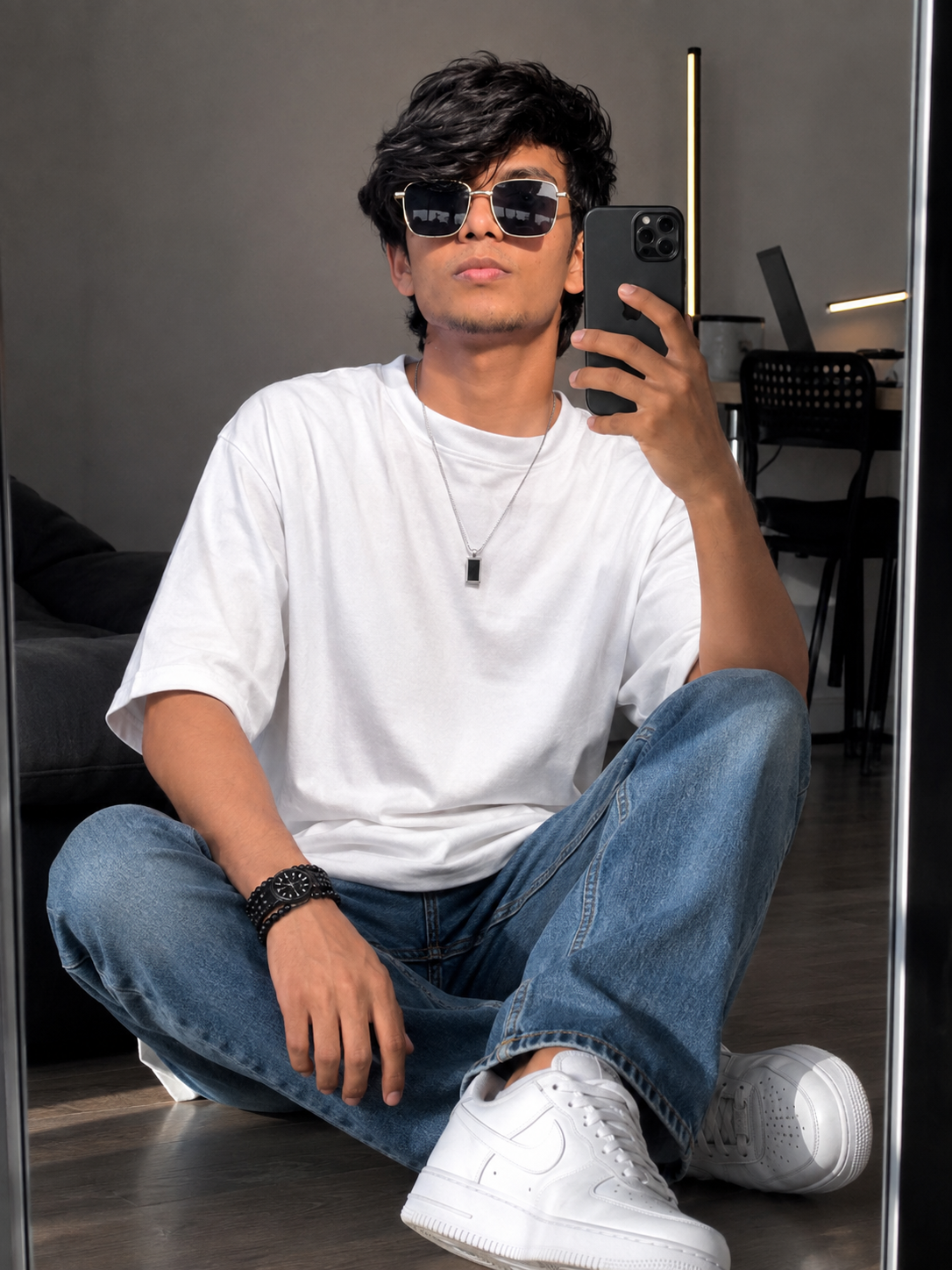
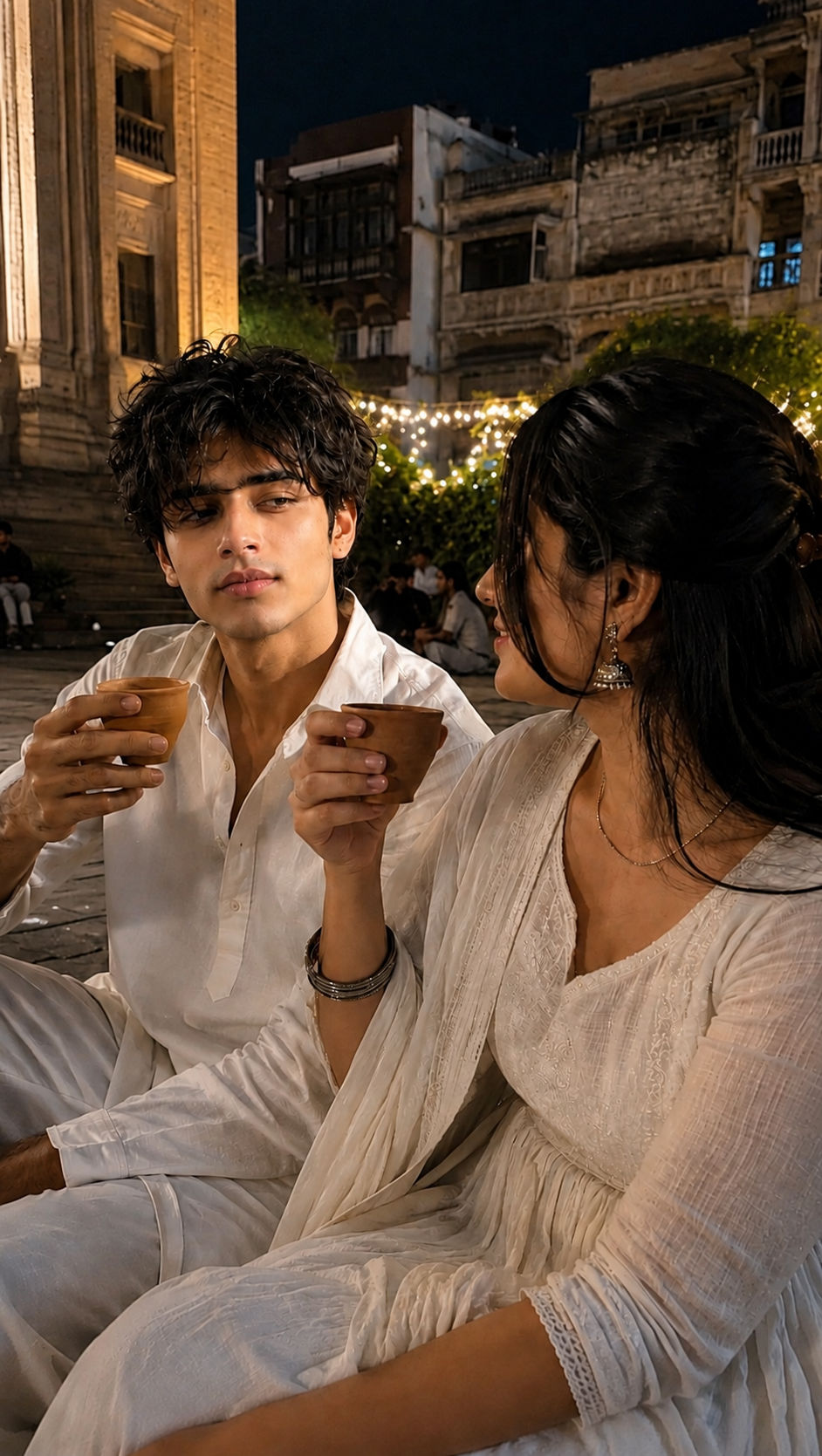
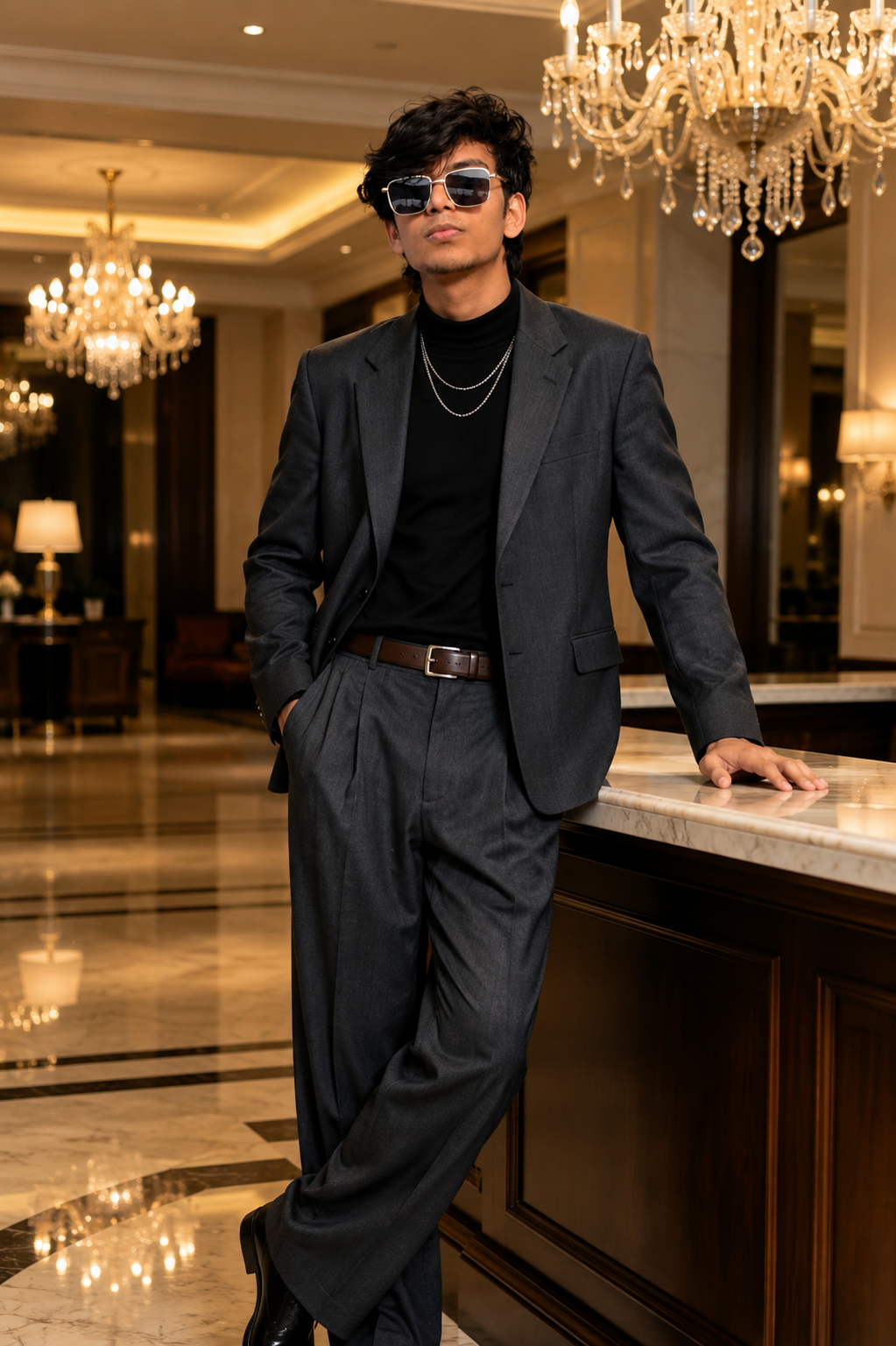
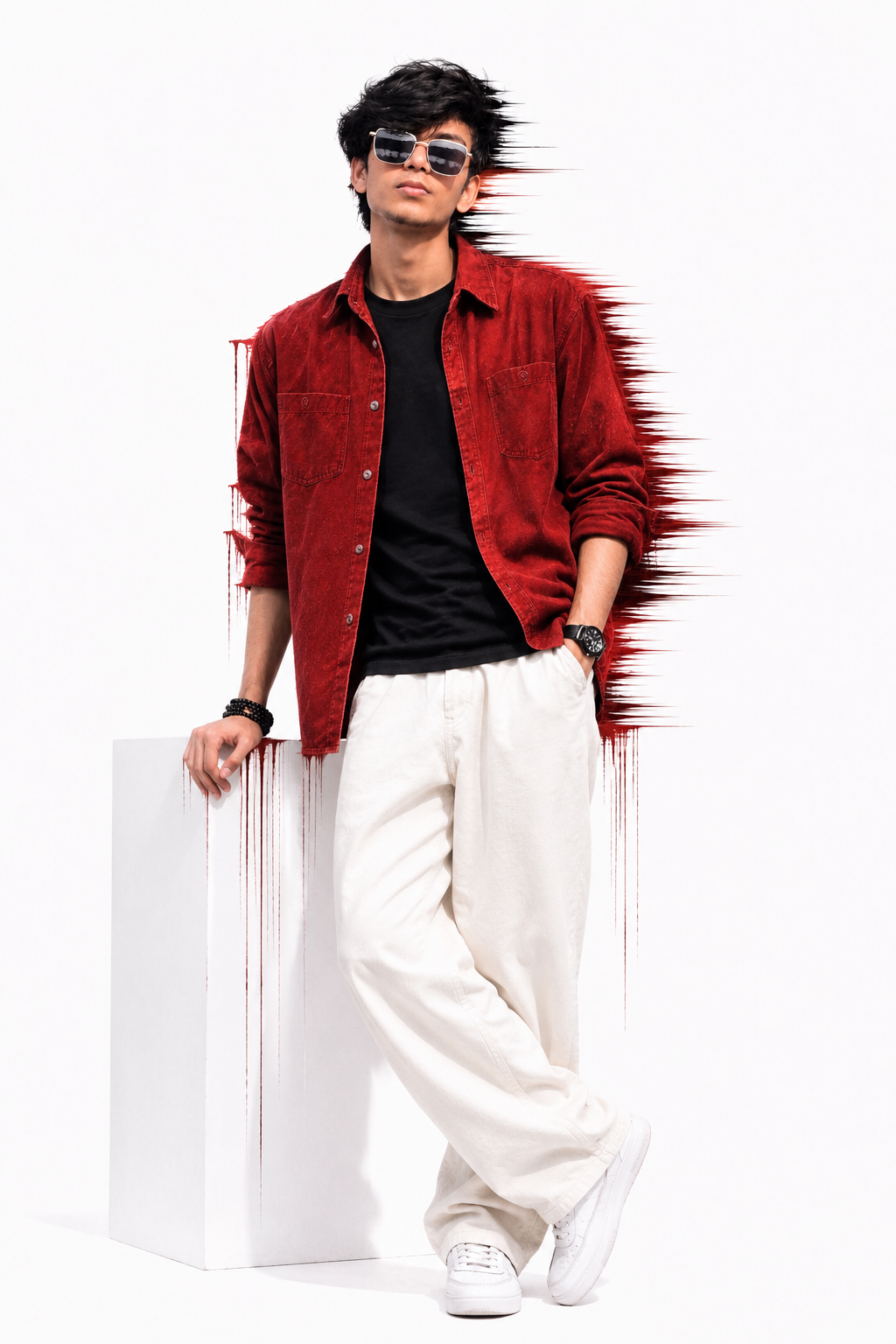
1: Open the Suraj Space website. 2: Find the post featuring the AI image you want to create and open it. 3: Copy the Image Prompt from that post. 4: Open ChatGPT and upload your clear photo. 5: Paste the copied prompt into ChatGPT along with your uploaded photo. 6: Click on Generate. 7: Within a few seconds, your AI image will be generated using your photo. 8: If you don't understand any part of the process, search “Suraj Space” on Instagram and watch the tutorial video for the complete process.
🎨 How to Create the Video in Flow AI
Step 1: Prepare the Prompt
First, copy the complete VIP Boss Walk AI video prompt provided above.
Make sure you copy the entire prompt rather than only the first few lines. The additional details help the AI understand the environment, characters and camera movement.
If you want to create your own version later, you can also modify the clothing, mall design, lighting or camera movement.
Step 2: Open Flow AI
Open the Flow AI video creation platform and sign in to your account if required.
After entering the video creation interface, look for the option that allows you to create a new video or generate a scene from a text prompt.
The exact interface can change over time, so the names or positions of buttons may be slightly different.
Step 3: Start a New Video Project
Create a new video project.
Depending on the options available in your version of Flow AI, you may be able to select different video generation modes, aspect ratios or models.
For social media content, a vertical format is usually useful. For YouTube or website presentations, a widescreen format can work better.
Choose the format according to where you plan to publish the final video.
Step 4: Paste the AI Video Prompt
Now find the main prompt or text description box.
Paste the complete prompt into the box.
Do not add unnecessary instructions that could conflict with the original description. The prompt already explains the main character, bodyguards, mall environment, camera movement, lighting and visual quality.
Step 5: Add a Reference Image If Needed
If you want a specific character to appear in the video, you can use a suitable reference image if your Flow AI setup provides an image-to-video or reference-image feature.
A reference image can help maintain the appearance of a character across the generated scene.
For a completely AI-generated character, you can simply use the text prompt without adding an image.
If you use a person’s photograph, make sure you have permission to use it.
Step 6: Choose the Video Settings
Before generating the video, check the available settings.
For a cinematic VIP walk, pay particular attention to:
Aspect Ratio: Choose according to your publishing platform.
Duration: A short clip is usually easier to control and can be edited into a longer Reel or Short.
Quality: Select the highest practical quality available to you.
Camera Movement: Smooth tracking or cinematic movement works particularly well for this concept.
You do not need to make every setting complicated. The prompt itself contains detailed instructions for the visual style.
Step 7: Generate the Video
Once everything is ready, start the generation process.
AI video generation can take some time because the system needs to create multiple frames and maintain consistency between them.
When the generation is complete, watch the entire clip carefully.
Do not judge the result only from the first few seconds. Check the character movement, bodyguards, background, camera motion and overall consistency.
💡 How to Create Better, More Accurate, Highly Detailed & Realistic AI Images
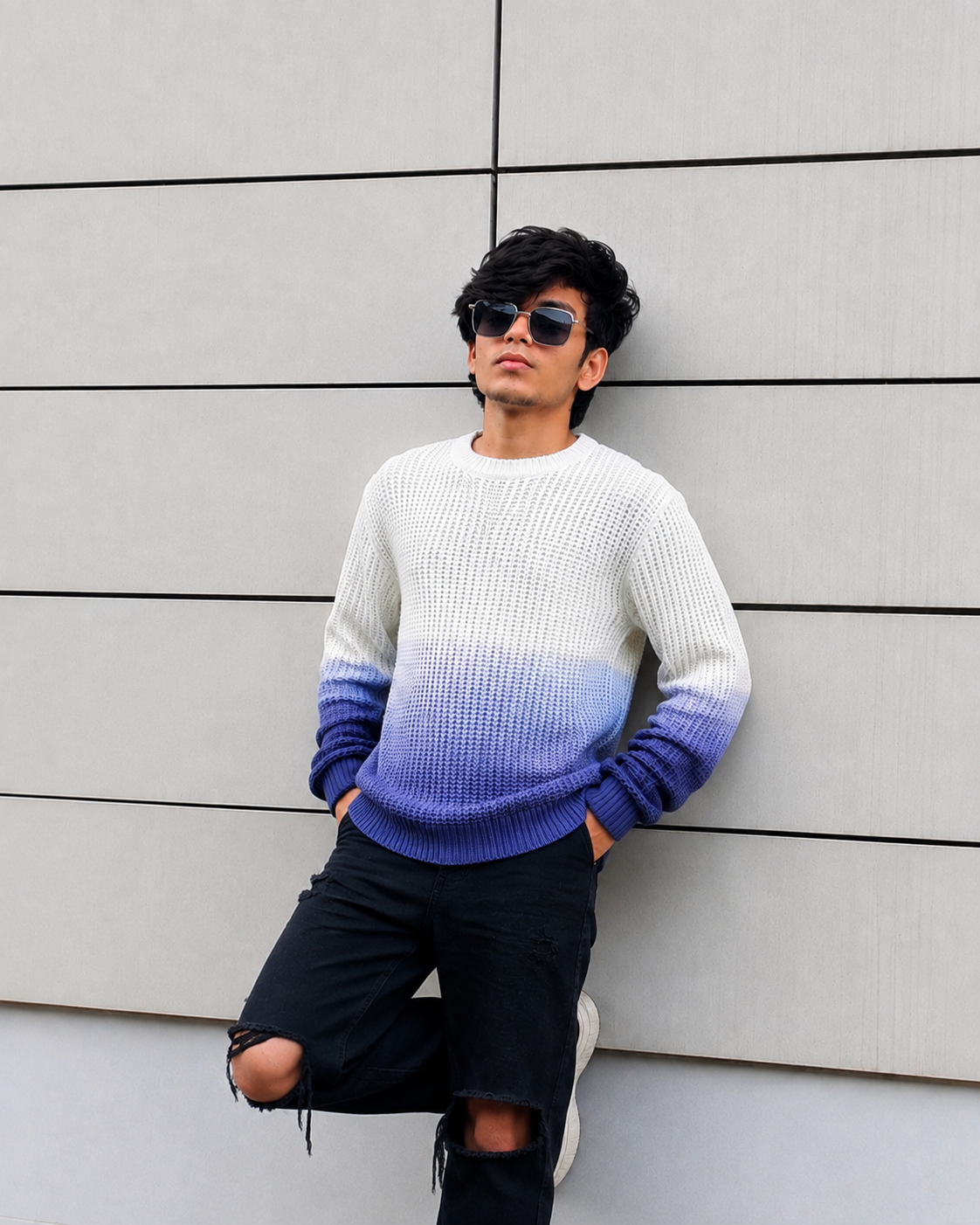
To achieve the best possible results when generating AI images, always begin with a clear, high-quality, natural reference photo of yourself. The quality of the reference image plays an important role in helping the AI understand your real appearance and create a more accurate and consistent result.
🙏 Final Words
🔥 Create your own VIP Boss Walk AI Video and show your style like a real boss! 😎
Follow the tutorial, copy the prompts, and make your cinematic AI video using Google Flow AI.
❤️ Like, Share & Subscribe for more trending AI video tutorials.
🙏 Thank you for your support!



💬 Recent Comments